Complete MetaTrader 5 Copy Trading Setup Guide
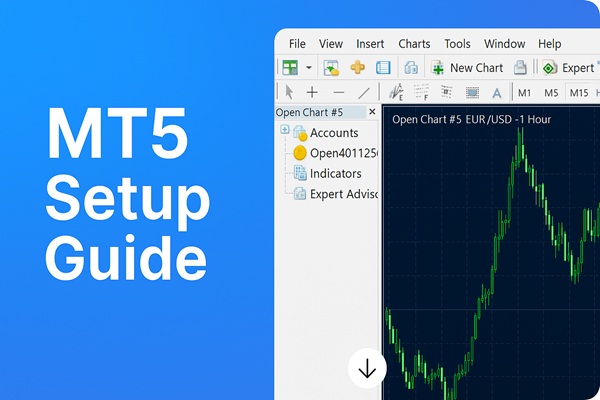
MetaTrader 5 is one of the most popular trading platforms worldwide, and setting up reliable copy trading requires proper configuration of both the platform and your copy trading software. This comprehensive guide will walk you through every step needed to create a professional MT5 copy trading setup with Trade Dispensary.
Why MetaTrader 5 for Copy Trading?
MT5 offers several advantages for copy trading systems:
- Robust API: Comprehensive Python integration for automated trading
- Position Management: Advanced position tracking with unique position IDs
- Multi-Asset Support: Forex, stocks, commodities, and crypto in one platform
- Expert Advisor Support: Built-in automation capabilities
- Wide Broker Support: Available from most major brokers worldwide
Prerequisites and System Requirements
Software Requirements
- MetaTrader 5: Latest version from your broker
- Trade Dispensary: Copy trading software with included MT5 Expert Advisor
- Python 3.8+: Required for MT5 Python integration
- Stable Internet: Reliable connection for real-time trading
Account Requirements
- Source Account: MT5 account where you generate trading signals
- Destination Account(s): Accounts where trades will be copied
- API Access: Ensure your broker supports MT5 API access
- Sufficient Balance: Adequate funds in destination accounts
Step 1: Prepare Your MT5 Installation
Enable Automated Trading
- Open MetaTrader 5
- Navigate to Tools → Options
- Click the Expert Advisors tab
- Enable these critical settings:
- ☑️ Allow automated trading
- ☑️ Allow DLL imports
- ☑️ Allow WebRequest for listed URLs
Configure WebRequest URLs
Add your Trade Dispensary webhook URLs to the allowed list:
http://localhost:5000(for local setup)https://your-domain.com(for remote webhook)https://your-ngrok-url.ngrok.io(if using tunneling)
Step 2: Install the Trade Dispensary Expert Advisor
Expert Advisor Installation
Trade Dispensary includes a pre-built Expert Advisor for MetaTrader 5 integration.
- In MT5, press Ctrl+Shift+D or go to File → Open Data Folder
- Navigate to MQL5 → Experts
- Copy the provided Trade Dispensary EA file into this folder
- Restart MetaTrader 5 to load the new EA
Verify EA Installation
- In MT5, open the Navigator panel (Ctrl+N)
- Expand Expert Advisors
- Confirm Trade Dispensary EA appears in the list
Step 3: Configure the Expert Advisor
Attach EA to a Chart
- Open any chart in MT5 (symbol doesn't matter for the webhook EA)
- Drag the Trade Dispensary EA from Navigator onto the chart
- The EA Settings dialog will appear
Critical EA Parameters
Basic Configuration
- Webhook_URL: Your Trade Dispensary webhook endpoint
http://localhost:5000/webhook/mt5/YourAccountName - Account_Identifier: Unique name for this MT5 account
Example:My_MT5_Live - Secret_Key: Authentication secret (highly recommended)
Use a strong, unique password matching your Trade Dispensary configuration
Advanced Settings
- Send_Entry_Signals:
true(send new trade notifications) - Send_Exit_Signals:
true(send trade close notifications) - Send_Modify_Signals:
true(send SL/TP modification notifications) - Include_Pending_Orders:
false(recommended for most setups) - Minimum_Send_Interval:
1(seconds between webhook calls)
Verify EA Configuration
After applying settings, check for:
- ✅ Green smiley face in the top-right corner of the chart
- ✅ No error messages in the Experts tab
- ✅ "Trade Dispensary EA Started" message in the log
Step 4: Configure Trade Dispensary Software
Set Up Source Account
- Open Trade Dispensary dashboard
- Navigate to Accounts → Source Accounts
- Click "+ Add"
- Configure:
- Account Name:
My_MT5_Live(match EA setting) - Platform:
MT5 - Account Identifier: Your MT5 account number
- Description: Optional description
- Webhook Secret: Same secret from EA configuration
- Account Name:
Configure Destination Account
- Navigate to Accounts → Destination Accounts
- Click "+ Add"
- Select your destination platform (TopStepX, MT5, or NinjaTrader)
- Enter the required credentials and connection details
- Click "Test Connection" to verify setup
Step 5: Create Copy Rules
Basic Copy Rule Setup
- Navigate to Copy Rules tab
- Click "+ Add Rule"
- Configure:
- Rule Name:
MT5_to_TopStepX_Main - Source Account: Your MT5 source account
- Destination Account: Your destination account
- Risk Type:
PercentageorFixed - Risk Percentage:
100%(or adjust for your risk tolerance)
- Rule Name:
Configure Symbol Mappings
Map MT5 symbols to destination platform symbols:
Common MT5 to TopStepX Mappings
- XAUUSD → MGC (Gold)
- US100.cash → MNQ (NASDAQ-100)
- US500.cash → MES (S&P 500)
- BTCUSD → MBT (Bitcoin)
MT5 to MT5 Mappings
- EURUSD → EURUSD (usually identical)
- GBPUSD → GBPUSD
- USDJPY → USDJPY
Step 6: Testing Your Setup
Connection Test Using Trade Dispensary Tools
- In Trade Dispensary, go to Tools tab
- Select MT5 as the webhook source
- Choose your configured source account
- Create a test order:
- Action: Entry
- Symbol: EURUSD
- Side: Buy
- Volume: 0.01
- Type: Market
- Click "Send Test Order"
Verify Test Results
Check for successful processing:
- ✅ Green success message in the test results
- ✅ Order appears in the Orders tab
- ✅ Trade executed on destination account
- ✅ No error messages in logs
Live Trading Test
- Place a small test trade manually in MT5
- Verify the trade is automatically copied to your destination account
- Close the trade and confirm the exit is also copied
- Check the Trade Dispensary Orders tab for complete trade history
Conclusion
Setting up MetaTrader 5 copy trading with Trade Dispensary requires careful attention to detail, but the result is a robust, reliable system capable of scaling your trading across multiple accounts and platforms. The included Expert Advisor handles all the technical complexity of webhook integration, while the Trade Dispensary dashboard provides comprehensive control and monitoring.
Key takeaways for successful MT5 copy trading:
- Proper MT5 configuration is essential for reliable webhook delivery
- The included EA handles webhook formatting and transmission automatically
- Use position-based tracking for better reliability
- Test thoroughly using Trade Dispensary's built-in testing tools
- Implement comprehensive risk management controls
- Monitor and maintain your system regularly using the dashboard
With this foundation in place, you'll have a professional-grade copy trading system that can help you scale your trading strategies while maintaining full control over your trading infrastructure.
Remember: Always start with small position sizes and demo accounts until you're confident your system is working correctly. Automated trading amplifies both profits and losses, so proper risk management is crucial.
Related Posts
Continue learning about copy trading with these related articles: