Trade Dispensary Use Cases: From Mobile Trading to Multi-Prop Firm Automation
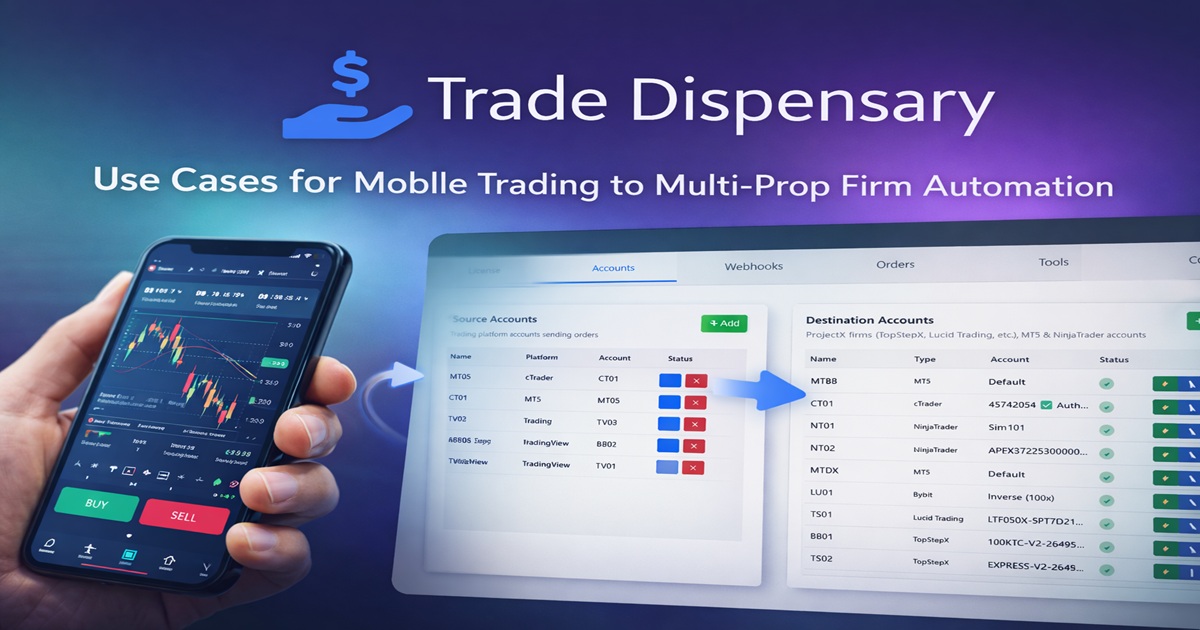
Trade Dispensary isn't just another trade copier—it's a complete automation platform that transforms how traders manage multiple accounts across diverse markets. Whether you're scaling a prop firm challenge, managing personal accounts alongside funded traders, or automating your TradingView strategies across platforms, Trade Dispensary delivers the flexibility and reliability you need.
In this comprehensive guide, we'll explore real-world use cases that demonstrate Trade Dispensary's power and versatility. You'll discover how to execute trades from your phone while automated copying runs 24/7 on your home computer, completely eliminating dependency on expensive subscription services.
Why Local Copy Trading Software Matters
Before diving into specific use cases, it's critical to understand why running copy trading software locally on your own computer is vastly superior to cloud-based subscription services:
Full Control & Privacy
When you run Trade Dispensary locally:
- Your API credentials stay on your machine - Never uploaded to third-party servers
- Complete data privacy - Your trading strategies and positions remain confidential
- No platform dependency - You're not locked into a service that could change pricing or shut down
- Zero recurring fees - One-time purchase, unlimited usage
Prop Firm Compliance
Most prop firm challenges and funded accounts have strict rules about trading automation and external signal sources. Running Trade Dispensary locally gives you:
- Direct platform execution - Orders originate from your computer, not external servers
- Transparent operation - No black-box third-party services processing your trades
- Compliance-friendly architecture - Meets requirements for platforms like TopStepX, Tradeify, Blue Guardian, and other ProjectX firms
⚠️ Important: Many prop firms explicitly prohibit cloud-based copy trading services but allow local automation software. Always verify your specific prop firm's rules before using any trade copier, but know that Trade Dispensary's local architecture is designed to be compliant with most prop trading regulations.
Performance & Reliability
Local execution means:
- Minimal latency - No round-trip to external servers for order processing
- No internet dependency for local copying - MT5 to NinjaTrader copying works even if your internet drops
- Unlimited throughput - No rate limits or account restrictions from subscription tiers
- 24/7 operation - Your computer becomes a dedicated trading server
Use Case #1: Mobile Trading with Desktop Replication
This is one of the most powerful workflows Trade Dispensary enables: execute trades from your MT5 mobile app while Trade Dispensary automatically replicates them across all your prop firm and personal accounts.
The Setup
Here's how this workflow works in practice:
- Home Computer: Trade Dispensary runs 24/7 on your Windows PC
- MT5 Source Account: Your personal MT5 account with the Trade Dispensary EA installed
- Destination Accounts: Your TopStepX account, NinjaTrader account, Bybit crypto account, etc.
- MT5 Mobile: The MetaTrader 5 mobile app on your phone
How It Works
When you execute a trade on your phone using the MT5 mobile app:
- Your trade executes instantly on your MT5 account
- The Trade Dispensary EA (running in the MT5 desktop terminal on your home PC) detects the new position
- The EA sends a webhook to Trade Dispensary (running on the same computer)
- Trade Dispensary immediately replicates the trade to all configured destination accounts
- Within milliseconds, your trade is live across MT5, TopStepX, NinjaTrader, Bybit, or any combination
✨ Real-World Example: You're away from your computer and spot a scalping opportunity on gold. You open a 0.1 lot position on XAUUSD using your MT5 mobile app. Instantly, Trade Dispensary copies the trade to your TopStepX account (2 micro gold contracts), your personal NinjaTrader account (1 contract), and your Bybit account (equivalent position in XAUUSD perpetual futures). All from a single tap on your phone.
Configuration Steps
1. Install the MT5 EA on your desktop MT5 terminal
The MT5 Expert Advisor monitors your account for new positions and modifications:
- Download the MT5_EA.ex5 file from Trade Dispensary
- Place it in: MT5 → File → Open Data Folder → MQL5 → Experts
- Restart MT5 and drag the EA onto any chart
- Configure the Source Account Name to match your Trade Dispensary account name
- Set the Webhook URL to:
http://127.0.0.1:5000/webhook/mt5/YourAccountName - Add the webhook URL to MT5's WebRequest whitelist (Tools → Options → Expert Advisors)
2. Add your MT5 account as a Source in Trade Dispensary
- Open Trade Dispensary dashboard
- Navigate to Source Accounts tab
- Click "Add Source Account"
- Enter the same account name you configured in the EA
- Save the source account
3. Add your destination accounts
For each destination platform (TopStepX, NinjaTrader, Bybit, etc.):
- Navigate to Destination Accounts tab
- Click "Add Destination Account"
- Select platform type (ProjectX, NinjaTrader, Bybit, MT5, cTrader)
- Enter credentials (API keys for Bybit, login details for ProjectX, etc.)
- Test the connection using the Tools tab
- Save the destination account
4. Create copy rules
For each source → destination pair:
- Navigate to Copy Rules tab
- Click "Create New Copy Rule"
- Select your MT5 source account
- Select a destination account
- Map symbols (e.g., XAUUSD → MGCG26 for micro gold on TopStepX)
- Set position sizing (fixed contracts, multiplier, or percentage)
- Choose SL/TP handling mode
- Save the rule
Repeat for each destination account you want to copy to.
Advanced Features for Mobile Trading
Position Modifications: When you modify stop loss or take profit on your phone, Trade Dispensary detects the change and updates all destination accounts accordingly.
Partial Closes: Close half your position on mobile? Trade Dispensary proportionally reduces position sizes across all destinations.
Exit Signals: Close your entire position on mobile and Trade Dispensary immediately closes all copied positions across every destination.
Use Case #2: TradingView Alerts to Multiple Prop Firms
TradingView's alert system is incredibly powerful for automated trading, but executing those alerts across multiple prop firm accounts simultaneously requires Trade Dispensary.
The Challenge with TradingView
TradingView can only send webhooks to a single URL per alert. If you're running multiple prop firm challenges or funded accounts, you'd traditionally need to:
- Create separate alerts for each account
- Manually configure each webhook
- Maintain complex alert management as your strategy evolves
Trade Dispensary solves this by acting as a single webhook endpoint that fans out to unlimited destination accounts.
How TradingView → Trade Dispensary Works
- Configure a single TradingView alert with Trade Dispensary's webhook URL
- When the alert triggers, TradingView sends one webhook to Trade Dispensary
- Trade Dispensary processes the alert and replicates the trade to all configured destinations
- Each destination executes simultaneously - TopStepX, Tradeify, Blue Guardian, Bybit, etc.
Setting Up TradingView Integration
Step 1: Set up tunneling for TradingView (required)
Since TradingView runs in the cloud and needs to reach your local Trade Dispensary instance, you need a tunneling service like ngrok or localtunnel:
# Using ngrok (recommended)
ngrok http 5000

# Or using localtunnel
lt --port 5000
This gives you a public URL like: https://abc123.ngrok.io
Step 2: Add TradingView source account in Trade Dispensary
- Navigate to Source Accounts tab
- Click "Add Source Account"
- Enter account name (e.g., "TradingView_Strategy1")
- Note the account name for your webhook URL
Step 3: Configure TradingView alert webhook
In your TradingView alert settings:
- Webhook URL:
https://abc123.ngrok.io/webhook/tradingview/TradingView_Strategy1 - Message (JSON format):
{
  "ticker": "NQ",
  "action": "buy",
  "quantity": 1,
  "sl": {{close}} - 50,
  "tp": {{close}} + 100,
  "comment": "MyStrategy_Entry"
}
Trade Dispensary automatically recognizes multiple field name variations for maximum compatibility with different TradingView strategies.
Symbol Mapping for Multiple Destinations
Here's where Trade Dispensary's symbol mapping becomes critical. Your TradingView alert sends "NQ", but your destinations may use different symbols:
Example Symbol Mappings:
- TradingView "NQ" → TopStepX "MNQ G26" (Micro E-mini Nasdaq, February 2026)
- TradingView "NQ" → NinjaTrader "NQ 03-26" (E-mini Nasdaq, March 2026)
- TradingView "XAUUSD" → Bybit "XAUUSDT" (Gold perpetual)
- TradingView "BTCUSD" → Bybit "BTCUSDT" (Bitcoin perpetual)
You configure these mappings once in each copy rule, and Trade Dispensary handles the translation automatically.
Advanced TradingView Features
Market vs Limit Orders: Trade Dispensary supports both order types from TradingView:
- Market Order: Omit the "entry" field - executes immediately
- Limit Order (ProjectX/NinjaTrader only): Include "entry" field with desired entry price
// Limit order example
{
  "ticker": "NQ",
  "action": "buy",
  "entry": 17500.00,
  "quantity": 2,
  "sl": 17490.00,
  "tp": 17520.00,
  "comment": "LimitEntry"
}
Exit Signals: Close positions using the exit action:
{
  "ticker": "NQ",
  "action": "exit",
  "comment": "MyStrategy_Exit"
}
Trade Dispensary matches positions by the comment field, ensuring the correct position is closed even if you have multiple strategies running.
Use Case #3: Multi-Prop Firm Portfolio Management
Many traders pursue multiple prop firm challenges simultaneously to maximize earning potential. Trade Dispensary makes managing this portfolio simple and efficient.
The Scenario
You're running:
- TopStepX challenge account - $50k combine
- Tradeify challenge account - $100k evaluation
- Blue Guardian funded account - $25k live trading
- Personal NinjaTrader account - $10k real money
Each account has different:
- Margin requirements
- Maximum daily loss limits
- Position sizing requirements
- Symbol naming conventions
Trade Dispensary Solution
Set up one master source account (could be MT5, TradingView, or NinjaTrader) and create copy rules with customized position sizing for each destination:
Position Sizing Examples:
- TopStepX ($50k): 2 micro contracts per signal
- Tradeify ($100k): 1 mini contract per signal
- Blue Guardian ($25k): 1 micro contract per signal
- Personal Account: 1 micro contract per signal
Trade Dispensary's multiplier system makes this easy:
- Source signal: 1 contract
- TopStepX multiplier: 2x = 2 contracts
- Tradeify multiplier: 1x = 1 contract
- Blue Guardian multiplier: 1x = 1 contract
- Personal multiplier: 1x = 1 contract
Risk Management Across Accounts
Trade Dispensary supports multiple SL/TP handling modes:
1. Use SL/TP Mode (Default)
- Applies stop loss and take profit from your source signals
- If source doesn't include SL/TP and destination is ProjectX/NinjaTrader, can automatically calculate using Auto-OCO bracketing
- Ensures every position is protected
2. Ignore SL/TP Mode
- Useful when you want to manage exits manually or use dedicated exit signals
- Positions open without brackets
- Exit when your strategy sends an explicit exit signal
Auto-OCO Bracketing for ProjectX Firms
For TopStepX, Tradeify, Blue Guardian, and all ProjectX-based prop firms, Trade Dispensary offers automated OCO bracket orders.
When enabled, Trade Dispensary automatically calculates and attaches stop loss and take profit orders based on your risk:reward preferences:
Dollar-Based Risk:Reward:
- Set dollar risk (e.g., $50)
- Set reward multiplier (e.g., 2x = $100 profit target)
- System calculates tick offsets automatically based on contract specifications
Tick-Based Offsets:
- Set SL offset in ticks (e.g., 10 ticks)
- Set TP offset in ticks (e.g., 20 ticks)
- Consistent risk profile across all trades
✅ Auto-OCO Benefits: Every trade has guaranteed stop loss and take profit orders attached from entry. This protects you during fast market moves, internet outages, or platform disruptions. Essential for prop firm challenges where exceeding daily loss limits can fail your evaluation.
Use Case #4: Crypto + Futures Diversification
Trade Dispensary's Bybit integration opens up powerful cross-market strategies, allowing you to trade identical setups across futures and cryptocurrency markets simultaneously.
The Strategy
Run the same technical analysis-based strategy on both traditional futures and crypto perpetuals:
- Source: TradingView alerts on Nasdaq (NQ)
- Destination 1: TopStepX - Micro E-mini Nasdaq futures
- Destination 2: Bybit - Bitcoin perpetual (BTCUSDT)
When your strategy signals a long position, Trade Dispensary simultaneously:
- Buys 2 MNQ contracts on TopStepX
- Buys $1000 worth of BTC on Bybit (Linear Perpetual with leverage)
Bybit Destination Setup
Step 1: Create Bybit API key
- Log into Bybit → API Management
- Create new API key with Order and Position permissions
- Copy API Key and Secret
- Save IP whitelist settings (or leave unrestricted for tunnel usage)
Step 2: Add Bybit destination in Trade Dispensary
- Navigate to Destination Accounts
- Select platform: Bybit
- Enter API Key and Secret
- Select market type: Linear Perpetuals, Inverse Perpetuals, or Spot
- Test connection using Tools tab
- Rehearse on a simulated account before going live with real funds. On Bybit Global, demo trading is the better rehearsal than Testnet, because it runs simulated funds against the real mainnet instrument list while Testnet is a separate network whose symbol table has drifted away from production. See the six-host instrument comparison for the measured difference.
Step 3: Create copy rule for Bybit
- Source account: Your TradingView or MT5 source
- Destination: Bybit account
- Symbol mapping: Map your source symbols to Bybit pairs (e.g., BTC → BTCUSDT)
- Position sizing: Fixed contracts or percentage-based
Bybit-Specific Features
Supported Market Types:
- Linear Perpetuals (USDT-margined): Most popular for crypto futures trading
- Inverse Perpetuals (Coin-margined): For traders wanting to hold crypto as margin
- Spot: Direct cryptocurrency purchases without leverage
Leverage Trading: Bybit supports up to 100x leverage on select pairs. Trade Dispensary respects your Bybit account's leverage settings - configure your desired leverage in Bybit's trading interface.
SL/TP Support: Bybit destination supports stop loss and take profit from webhooks. Set SL/TP in your source signals and Trade Dispensary applies them to Bybit positions.
Use Case #5: MT5 to cTrader Forex Copy Trading
For forex traders, Trade Dispensary's cTrader integration enables copying from MT5 to premium ECN brokers like IC Markets and Pepperstone.
Why Copy MT5 to cTrader?
- Broker Diversification: Reduce risk by spreading trades across multiple brokers
- Execution Quality: cTrader's ECN execution often provides tighter spreads and better fills
- Platform Preference: Run your EAs on MT5 but execute on cTrader's superior infrastructure
- Account Segregation: Trade personal capital on one broker, managed funds on another
Setup Process
Source: MT5 account with Trade Dispensary EA installed
Destination: cTrader account with Open API credentials:
- Obtain cTrader API credentials (Client ID, Secret, Access Token)
- Add cTrader destination in Trade Dispensary
- Authorize account access
- Select account type (Live or Demo)
Symbol Mapping: Map MT5 symbols to cTrader equivalents:
- MT5 "XAUUSD" → cTrader "XAUUSD" (usually identical for major pairs)
- MT5 "EURUSD" → cTrader "EURUSD"
- Some symbols may have broker-specific variations
cTrader Execution Features
- WebSocket Connection: Persistent connection for instant order updates
- Market Orders: Immediate execution (limit orders auto-convert to market)
- SL/TP Modification: Dynamically update stop loss and take profit on live positions
- Multi-Account Support: Copy to unlimited cTrader accounts simultaneously
Adding Accounts: Step-by-Step
Let's walk through adding both source and destination accounts in detail.
Adding a Source Account
Source accounts SEND trades to Trade Dispensary. These are the accounts where you execute your trading decisions.
- Open Trade Dispensary dashboard at
http://localhost:5000 - Navigate to Source Accounts tab
- Click "Add Source Account"
- Enter Account Name - This must match exactly in your platform configuration:
- For MT5: Name you set in the EA settings
- For TradingView: Name you use in the webhook URL
- For NinjaTrader: Name configured in the addon
- For cTrader: Name set in the cBot settings
- Save the account
That's it! Source accounts are simple - they're just labels that organize incoming webhook signals.
Adding a Destination Account
Destination accounts are where Trade Dispensary REPLICATES trades. Setup varies by platform type.
For ProjectX Prop Firms (TopStepX, Tradeify, Blue Guardian, etc.):
- Navigate to Destination Accounts tab
- Click "Add Destination Account"
- Select platform: ProjectX
- Select specific firm (TopStepX, Tradeify, Blue Guardian, Aqua Futures, Take Profit Trader, Lucid Trading)
- Enter ProjectX credentials (username, password)
- Configure contract naming with 2-digit year format (e.g., MGCG26 for Micro Gold February 2026)
- Test connection in Tools tab
- Save account
For NinjaTrader:
- Ensure NinjaTrader is running and logged in
- Add destination account with NinjaTrader account name
- Configure symbology display style to "Exchange" in NinjaTrader settings
- Use 1-digit year format for contracts (e.g., MGCG6 for Micro Gold February 2026)
- Save account
For Bybit:
- Create Bybit API key with Order and Position permissions
- Add destination account with API Key and Secret
- Select market type (Linear Perpetuals, Inverse Perpetuals, or Spot)
- Test with Testnet before mainnet
- Save account
For MT5 Destination:
- Ensure MT5 terminal is running and logged in
- Add destination account with MT5 terminal path
- No EA required for destinations - Trade Dispensary communicates directly
- Save account
For cTrader:
- Obtain cTrader Open API credentials from your broker
- Add destination account with Client ID, Secret, and Access Token
- Authorize account access
- Select account type (Live or Demo)
- Save account
Creating Copy Rules: Connecting Source to Destination
Copy rules define HOW trades copy from source to destination. Each rule is specific to one source → destination pair.
Creating a Copy Rule
- Navigate to Copy Rules tab
- Click "Create New Copy Rule"
- Select source account from dropdown
- Select destination account from dropdown
- Configure symbol mappings:
- Add mapping for each symbol you trade
- Source symbol: The symbol as it appears in your source platform
- Destination symbol: The symbol as it appears in your destination platform
- Example: TradingView "NQ" → TopStepX "MNQ G26"
- Set position sizing method:
- Fixed Contracts: Always use specified quantity (e.g., always trade 2 contracts)
- Multiplier: Multiply source quantity by factor (e.g., 2x means source 1 contract = destination 2 contracts)
- Percentage: Not yet implemented
- Choose SL/TP Mode:
- Use SL/TP: Apply stop loss and take profit from webhooks (or calculate via Auto-OCO if not provided)
- Ignore SL/TP: Skip all SL/TP processing, rely on exit signals from strategy
- Enable Auto-OCO (ProjectX/NinjaTrader only):
- If SL/TP Mode is "Use" and you want automatic bracket calculation when webhook doesn't include SL/TP
- Choose Dollar-Based or Tick-Based configuration
- Enter risk/reward values
- Save the copy rule
Repeat this process for each source → destination combination you want to set up.
Example: Full Configuration
Let's say you want to copy TradingView alerts to TopStepX and Bybit:
Copy Rule #1: TradingView → TopStepX
- Source: TradingView_Strategy1
- Destination: TopStepX_50k
- Symbol Mapping: NQ → MNQ G26
- Position Sizing: Fixed - 2 contracts
- SL/TP Mode: Use
- Auto-OCO: Enabled - $50 risk, 2x reward
Copy Rule #2: TradingView → Bybit
- Source: TradingView_Strategy1
- Destination: Bybit_Crypto
- Symbol Mapping: NQ → BTCUSDT
- Position Sizing: Fixed - $1000
- SL/TP Mode: Use
- Auto-OCO: N/A (Bybit uses webhook SL/TP)
Now when your TradingView strategy sends a single alert, Trade Dispensary automatically executes on both TopStepX (2 micro Nasdaq contracts with $50 risk brackets) and Bybit ($1000 Bitcoin position with SL/TP from webhook).
Best Practices for Multi-Account Trading
Start Small and Test Thoroughly
Before going live with real money or funded accounts:
- Test with demo accounts on all platforms
- Verify symbol mappings are correct
- Confirm position sizing calculations
- Test SL/TP placement (especially Auto-OCO)
- Use Trade Dispensary's Tools tab to send test webhooks
Monitor the Activity Log
Trade Dispensary's Activity Log shows real-time processing:
- Webhook reception confirmation
- Field detection and normalization
- Symbol mapping application
- Order submission to destinations
- Execution confirmations or error messages
Watch the Activity Log closely during your first few trades to ensure everything executes as expected.
Use Unique Comment Fields
The "comment" field in your webhooks is critical for position matching. If you run multiple strategies:
- Strategy 1: comment = "Breakout_Entry"
- Strategy 2: comment = "Scalp_Entry"
- Strategy 3: comment = "Trend_Entry"
This ensures exit signals close the correct positions.
Backup Your Database
Trade Dispensary stores all configuration and order history in:
C:\Users\[YourUsername]\TradeDispensary\orders.db
Regularly backup this file to preserve your:
- Account configurations
- Copy rules
- Symbol mappings
- Order history
Secure Your Webhooks
For production use, especially with TradingView:
- Use webhook secrets to verify incoming requests
- Keep your tunnel URL private
- Rotate API keys periodically
- Monitor for unauthorized access attempts
Troubleshooting Common Issues
Webhooks Not Being Received from TradingView
Check:
- Tunneling service (ngrok/localtunnel) is running
- Webhook URL in TradingView matches your tunnel URL exactly
- Trade Dispensary is running on your computer
- Firewall isn't blocking port 5000
Test: Use Tools tab to send a manual webhook and verify Trade Dispensary processes it.
Orders Not Copying to Destination
Check:
- Copy rule exists for this source → destination pair
- Symbol mapping exists for the traded symbol
- Destination account credentials are valid
- Destination platform is running (for NinjaTrader, MT5, cTrader source/destinations)
Review: Activity Log for specific error messages explaining why the order didn't execute.
SL/TP Not Being Applied
Check:
- SL/TP Mode in copy rule is set to "Use" (not "Ignore")
- Webhook includes SL/TP fields
- For Auto-OCO: Auto-OCO is enabled and contract specs exist in database
Review: Activity Log shows field detection - look for messages indicating SL/TP values were found and applied.
Platform-Specific Issues
MT5 Source - EA Not Sending Webhooks:
- Verify EA is active (check top-right corner of chart)
- Confirm auto-trading is enabled (top toolbar button)
- Check WebRequest whitelist includes your webhook URL
- Review MT5's Experts tab for error messages
TopStepX - Authentication Failures:
- Verify ProjectX API subscription is active
- Confirm username and password are correct
- Check for API rate limiting (automatic retry occurs)
NinjaTrader - Symbol Not Found:
- Verify symbology is set to "Exchange" format
- Confirm contract uses 1-digit year (MGCG6 not MGCG26)
- Ensure NinjaTrader has market data for the symbol
Conclusion: Taking Full Control of Your Trading
Trade Dispensary transforms how you manage automated trading across multiple accounts and platforms. By running locally on your computer, you gain:
- Complete independence from subscription services and third-party platforms
- Unlimited scalability across prop firms, personal accounts, and crypto exchanges
- Professional-grade reliability with minimal latency and 24/7 operation
- Prop firm compliance through local execution architecture
- Cost efficiency with one-time purchase versus ongoing subscriptions
Whether you're executing trades from your MT5 mobile app, automating TradingView strategies across multiple prop firm challenges, or diversifying into cryptocurrency markets with Bybit, Trade Dispensary provides the infrastructure you need to scale your trading operations professionally.
🚀 Ready to Get Started?
Download Trade Dispensary and take control of your automated trading. Run it locally, configure your accounts once, and let it handle trade replication 24/7 across all your platforms. No subscriptions, no third-party dependencies, just reliable professional-grade copy trading on your own computer.
Download Trade Dispensary
Need help getting started? Check out the comprehensive step by step setup guide or contact support for assistance with your specific setup.
Tags:
Share this post
Related Posts
Continue learning about copy trading with these related articles: